
BouncyBalls
Primary Users: Teachers
Cost: Free app
Classroom Management
Features
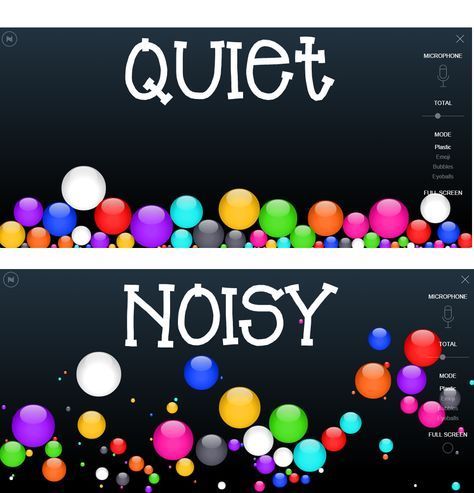
- A free online website that activates the user’s microphone and detects noise level.
- The more noise in the classroom, the more the balls bounce.
- This tool can be used as the students are working in groups or doing pair work or anytime you like.
- In addition to bouncy balls, choose from bubbles, eyeballs, and smiley face icons.
- Adjust sensitivity setting based on the task your students are engaged in
- Change the total number of balls onscreen (up to 200)
- a warning (which can be turned off) appears across the screen telling students to settle down.
- https://bouncyballs.org/
Drawbacks
- Some troubles trying to figure out how to enable the microphones.
- If you are using Firefox or Chrome, you must allow pop-ups. You should get a message in the narrow band below the address bar asking you to “Allow Microphone” for this site.
- More suited for younger ages, such as elementary (limited uses)
- Since the balls always jitter onscreen, they can be more distracting than helpful
- Seeing the balls tossing up and down might also wear off on students after a time (lose interest)
Information from: https://www.classcraft.com/blog/features/classroom-noise-level-monitors/
Classroom Connection/Benefits
Use Bouncy Balls when you need a neat way to monitor the noise level in your classroom:
- The app’s fun, silly nature adds some excitement to the classroom and makes it a great fit for younger students.
- Especially useful during cooperative learning, pair-share, literature circle or other group activities.
- It teaches students self-monitoring skills, especially if the site is projected to an interactive whiteboard
Information from: http://edutech4teachers.edublogs.org/2016/06/25/bouncy-balls-tool/
Alternative
Too Noisy
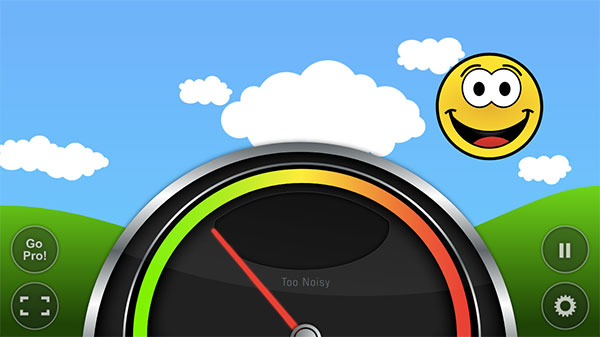
- Free classroom noise monitor offers both a free web browser and a mobile apps for $4.
- On this app an arrow spins left and right on a dial, similar to a speed meter in a car.
- The arrow stays in the green and yellow range. But when students get too loud, the arrow spikes into oranges and reds, warning students that they’ve hit the max.
- When students start to get loud, the sky turns orange, the clouds gray, and the emoji frowns. When the max is reached, the whole sky is dark gray and black, and the emoji becomes a crying face.
Pros:
- The tool is simple and not too distracting.
- The shifting colors and changing emojis are an effective visual cue that encourages students to stay in an acceptable range.
Cons:
- The free version requires teachers to register first (several steps and screens)
- The cartoonish nature of the app may also seem too “childish” for some students.
Information from: https://www.classcraft.com/blog/features/classroom-noise-level-monitors/
Conclusion
Overall looking at the Triple E Framework, I feel this is a good addition to classroom management but the drawbacks outweigh the benefits. I would however consider using it in small short instances so students are not getting distracted. I would also not recommend it for older grades, only elementary.
Engagement: this allows for students to be focused, stay on task, but it can be distracting with all the movement and noise.
Extension: it creates a connection between self-monitoring skills and behavior, but does not allow for any outside the classroom learning.
Enhancement: does little to enhancing the students knowledge, only reminds then to stay on task and to be quiet.

